Creating Your First Indicator
Building Your First TradingView Indicator
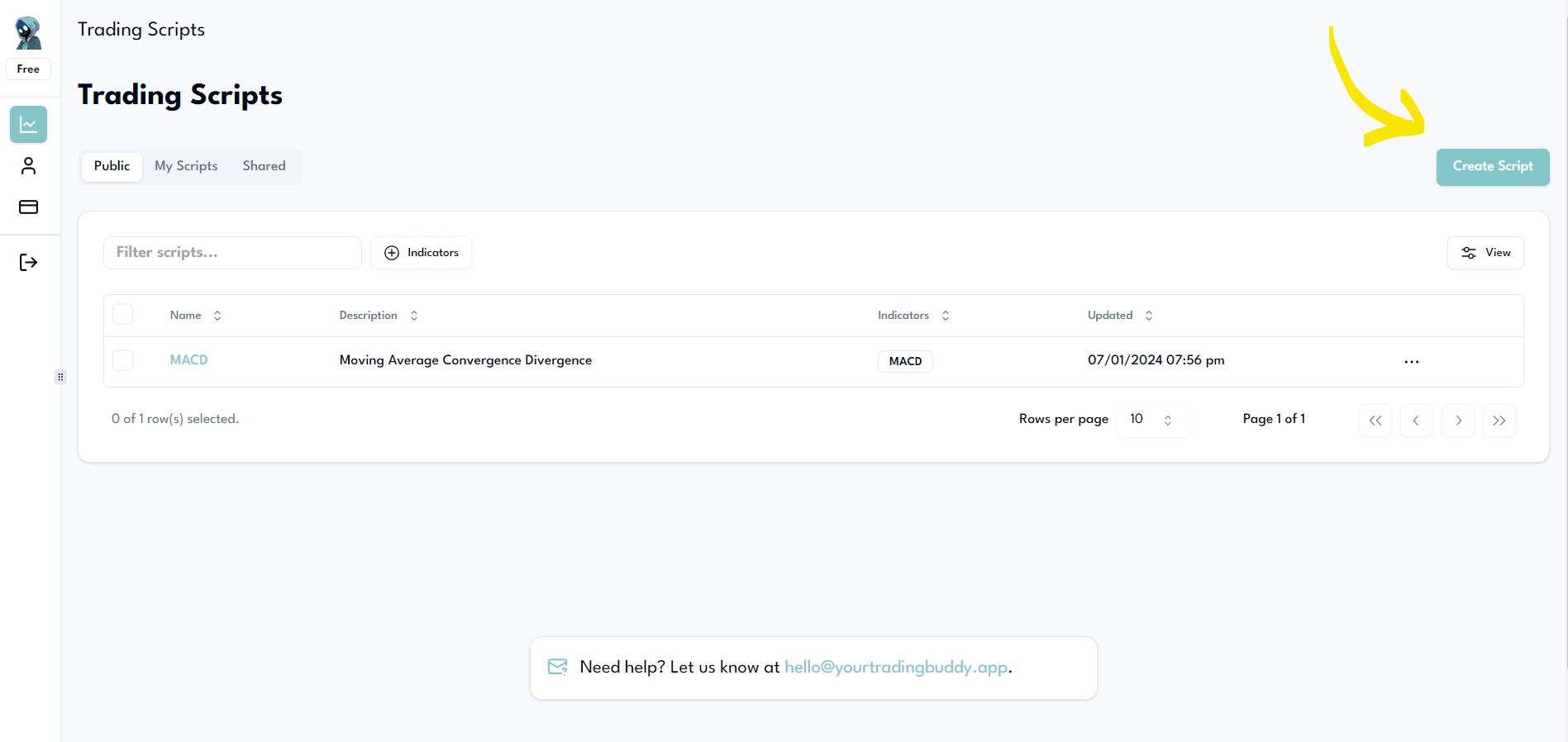
On the Trading Scripts page, click the Create Script button.
This will lead you to the Script Builder page.
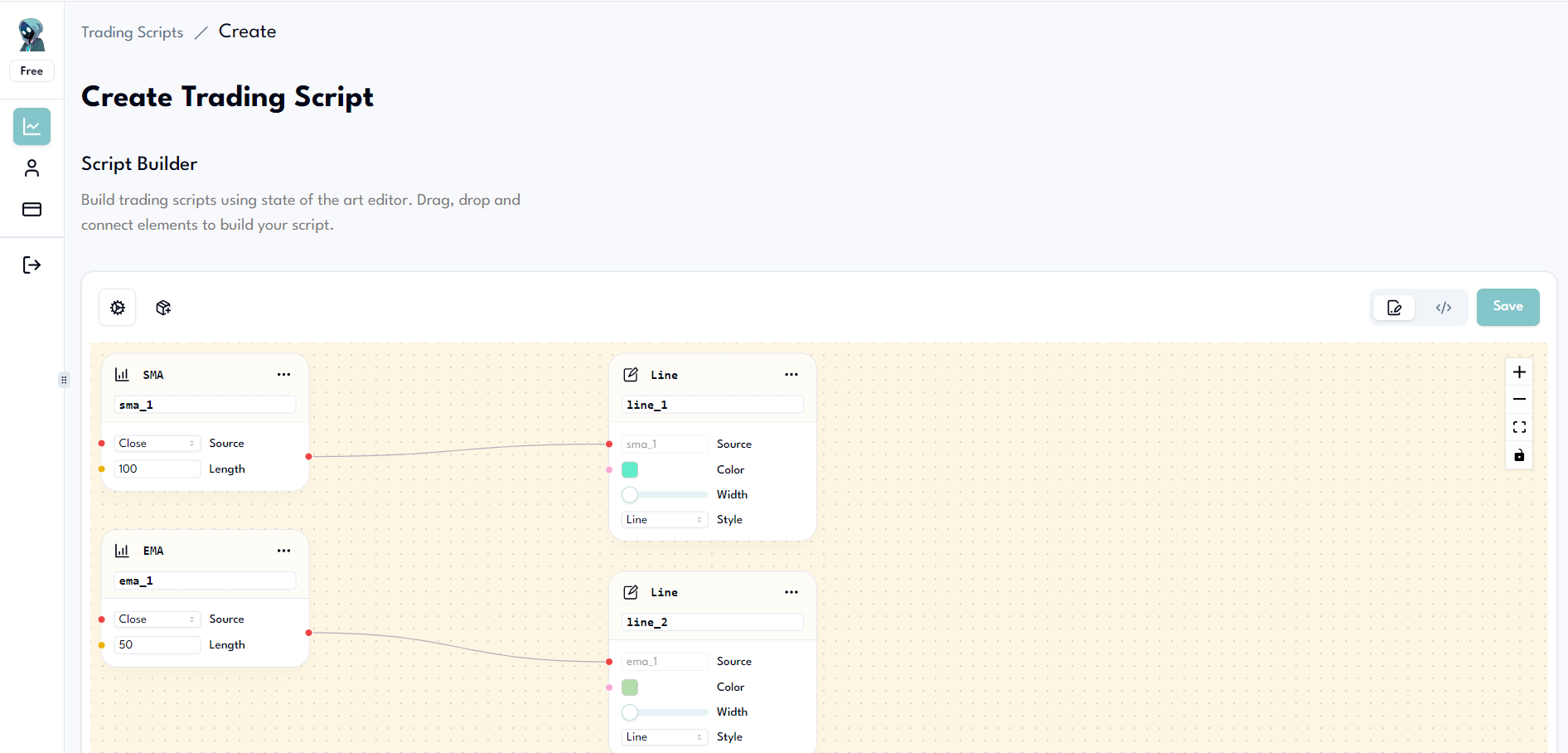
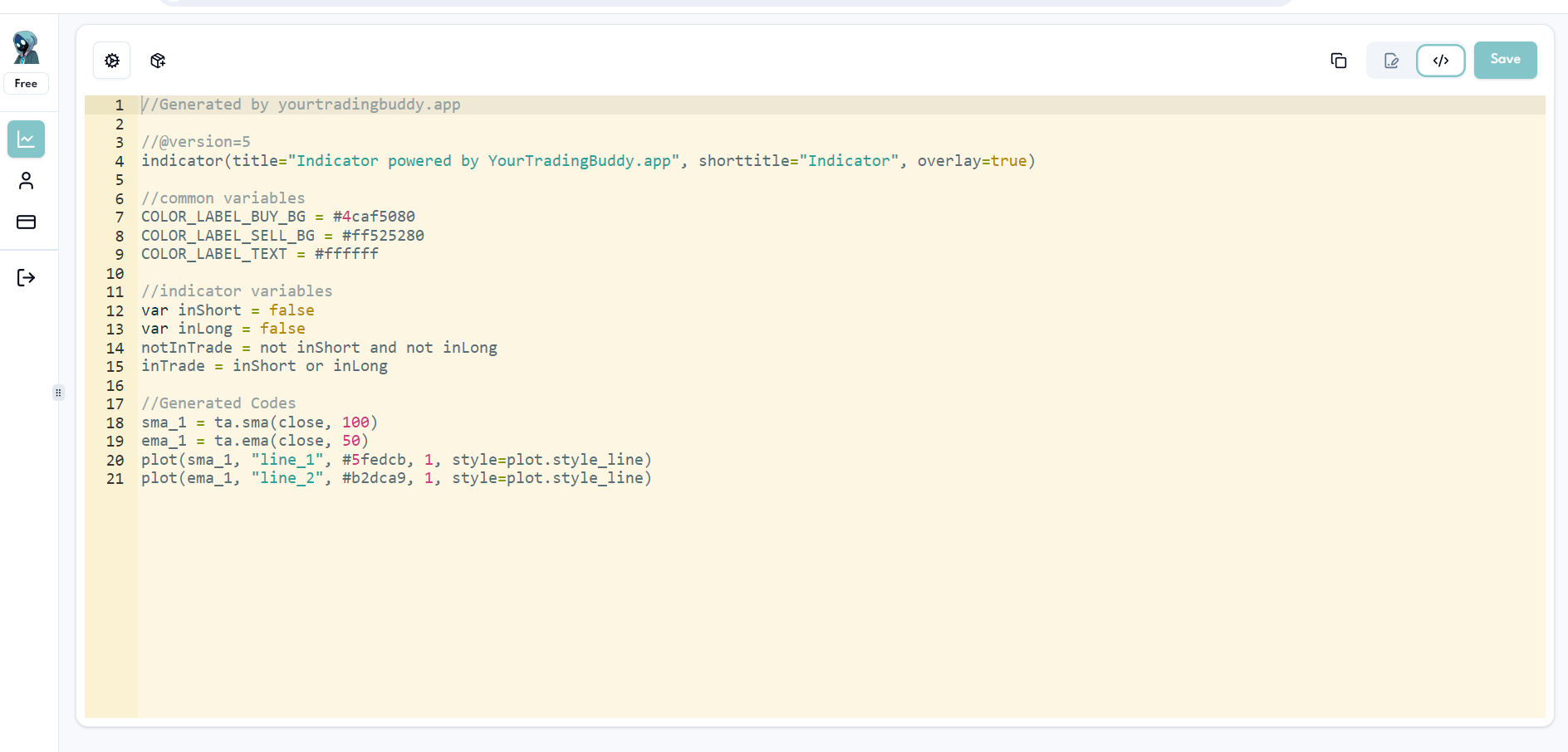
As you can see, there are already some default nodes added to our Script Builder on initial load. You can then click the code tab in the upper right corner.

This will instantly generate the TradingView code:
Then click the copy to clipboard and open TradingView button.
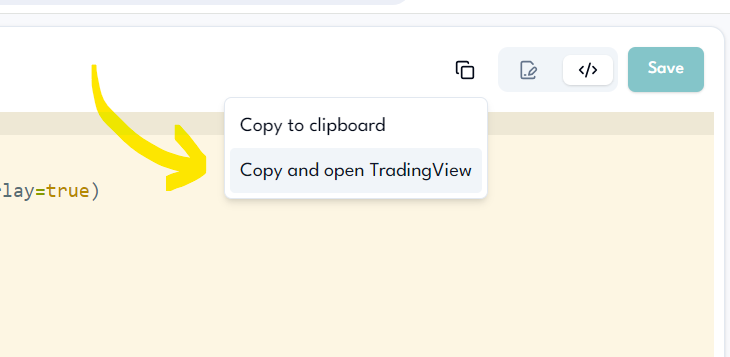
This will copy the generated code to the clipboard and open the TradingView website. If you already have an account, open the Pine Editor and you can simply paste the code by pressing Ctrl + V on Windows or Cmd + V on Mac.
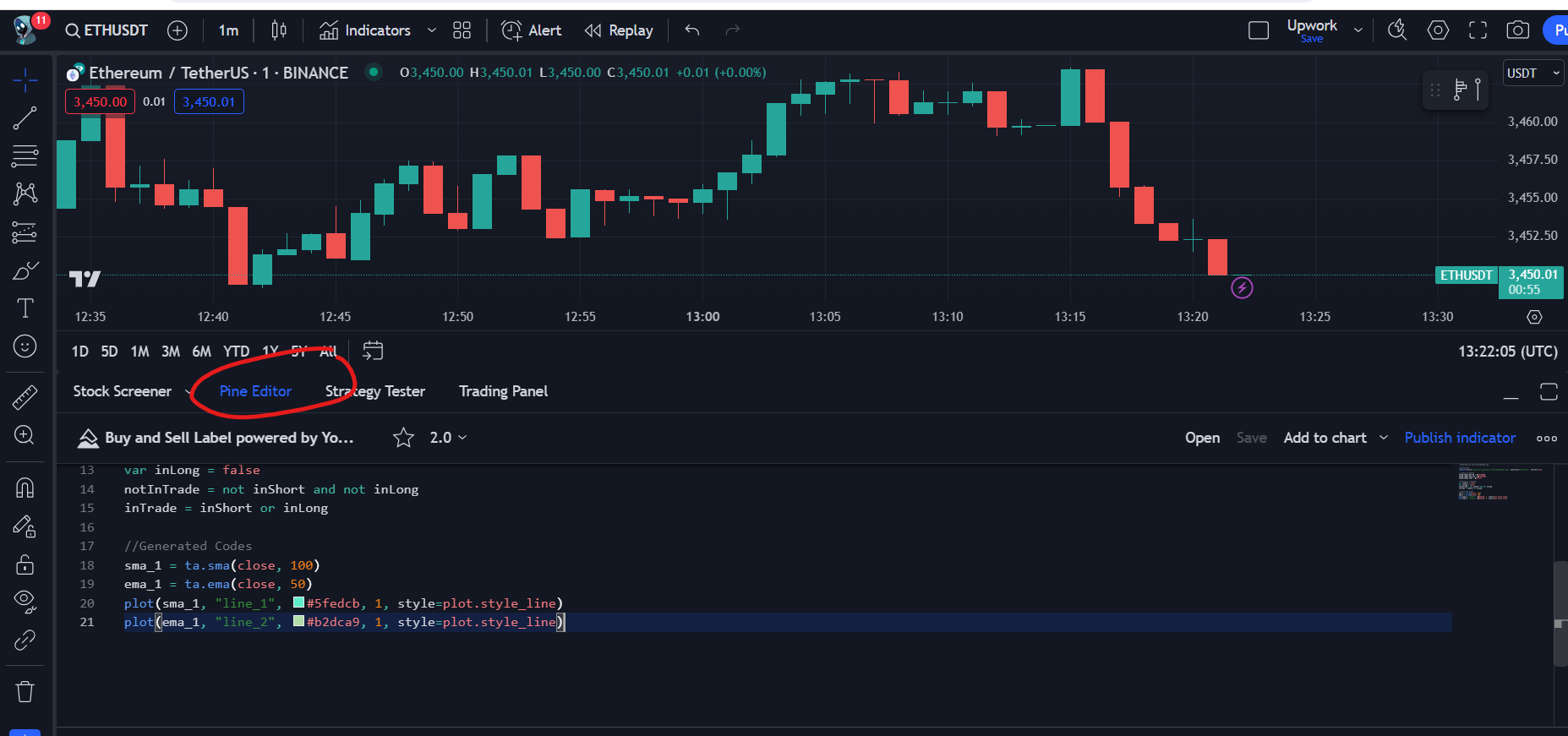
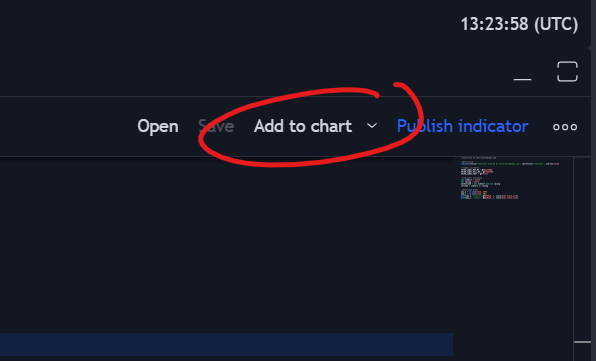
Click the add to chart button.
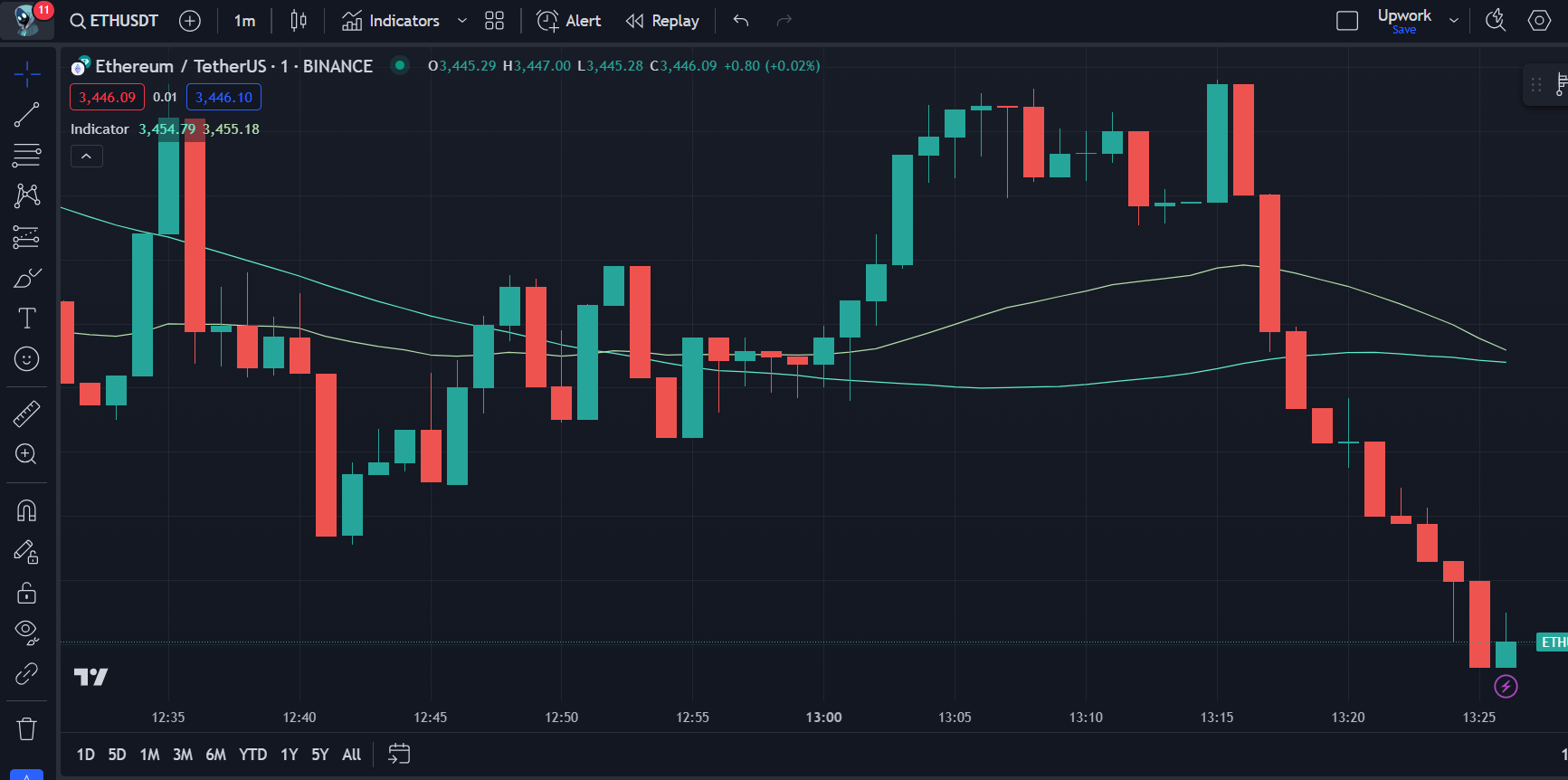
And voila! You should see your first indicator.
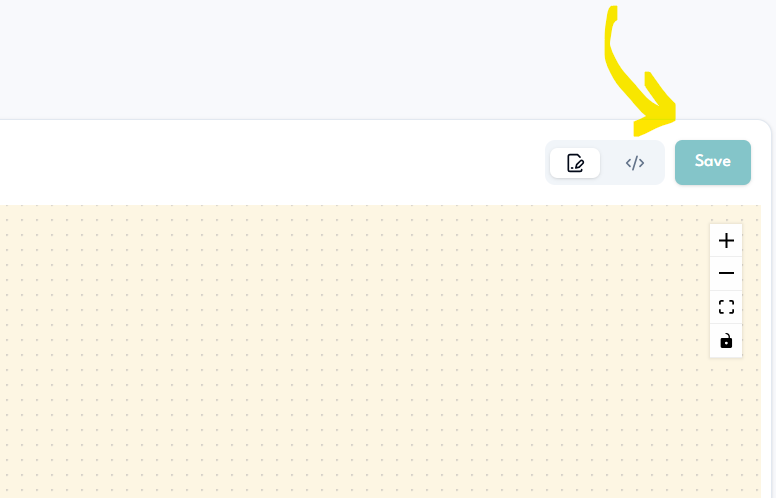
Once you're happy with the result of your indicator/script, hit the save button to make sure all changes are saved.
Summary
In this lesson, you learned how to use the Script Builder to generate TradingView script code. We also covered how to use the generated code with the TradingView website to view your newly built trading indicator.