Customizing Node Properties
Often, you may want to customize the default properties assigned to each node. To do this, you can edit the properties of each node and assign new values.
Text Fields
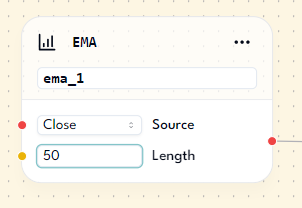
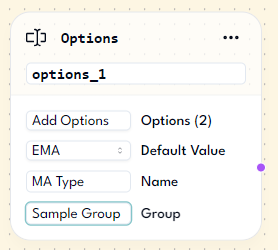
Text fields are simple text boxes. You can edit these fields by clicking on the text box and typing in the new values.
Examples include:
Lengthproperty of the EMA nodeGroupproperty of the Options node
Dropdown Select
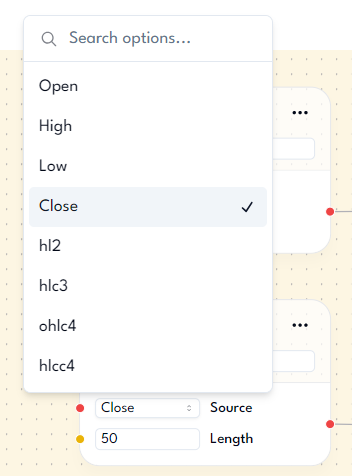
Dropdown select fields contain options that you can choose from. To edit these fields, click the select box. Once the popup options appear, click and choose a new value.
Note: There is a search field at the top of the popup if you have trouble finding the option you want.
Examples include:
Sourceproperty of the EMA node
Slider
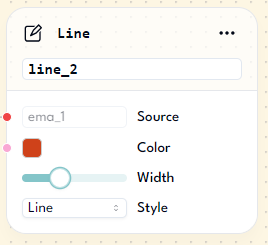
Sliders are typically used for numeric values and have a minimum and maximum range. To edit these fields, click and drag the slider thumb to the left to decrease the value or to the right to increase it.
Examples include:
Widthproperty of the Line node
Color Picker
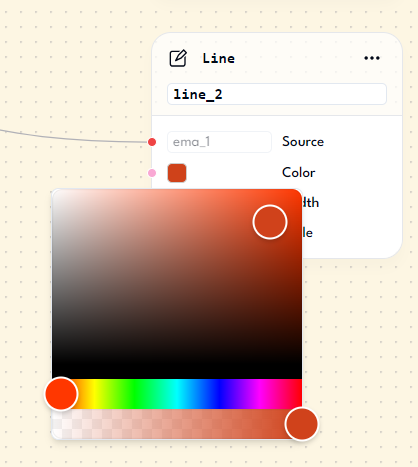
Color pickers allow you to select a color for the visual part of the script. To change the selected color, click the colored box to open a popup where you can pick a new color.
Examples include:
Colorproperty of the Line node
Handles
Handles are small circles on each node that serve as connection points. You can attach lines to these handles to pass values from one node to another.
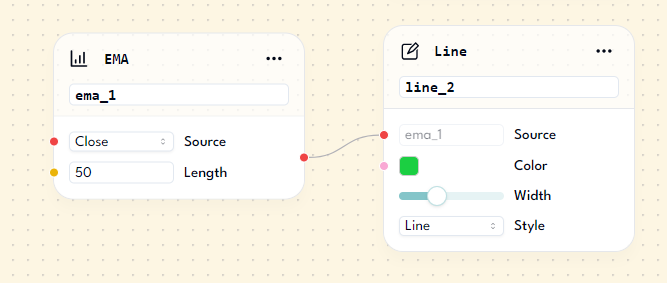
Handles come in different colors (red, purple, green, pink, yellow, etc.). You can only connect handles of the same color. For example, a red source handle can only connect to a red target handle. This color-coding helps ensure that values of different data types are not passed incorrectly, which would cause errors in the TradingView script compiler.
If the target handle is green, it indicates that the data type is Any. This means that the target handle will have the same data type as the source handle it is connected to.
Here is a reference for each data type:
- Green:
Any - Red:
Decimal Number - Yellow:
Whole Number - Blue:
Toggle (True/False) - Purple:
Text - Pink:
Color
Examples include:
Connected red dotsfrom the EMA node output to the Line node's source property
Summary
In this lesson, you learned about the different fields that nodes can have: text fields, dropdown selects, sliders, color pickers, and handles. We covered how to edit each specific field to change the node's properties. This customization is useful for modifying default values and building/testing your own scripts.