Different Categories of Nodes
Each node represents a block of code or functionality in Pine Script. They are categorized into the following types:
Input,Indicator,Util,Condition,Drawing, andSignal Nodes.
Input Nodes
Input nodes allow you to edit a property or value within the TradingView platform. For instance, in the image below, we have an Input node for a Whole Number.
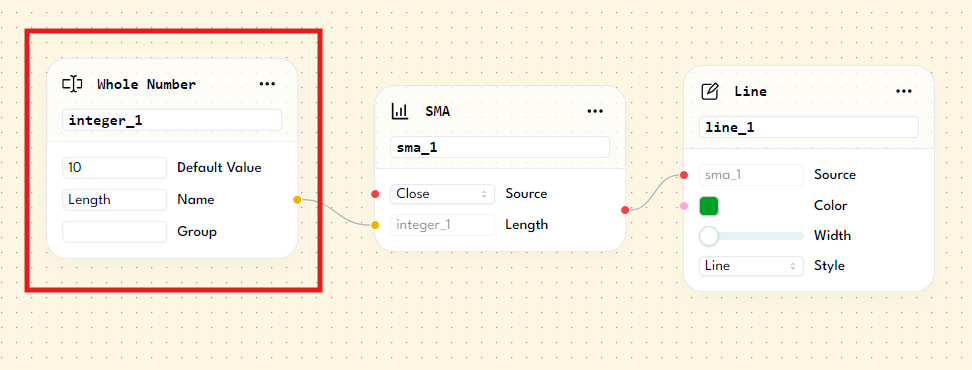
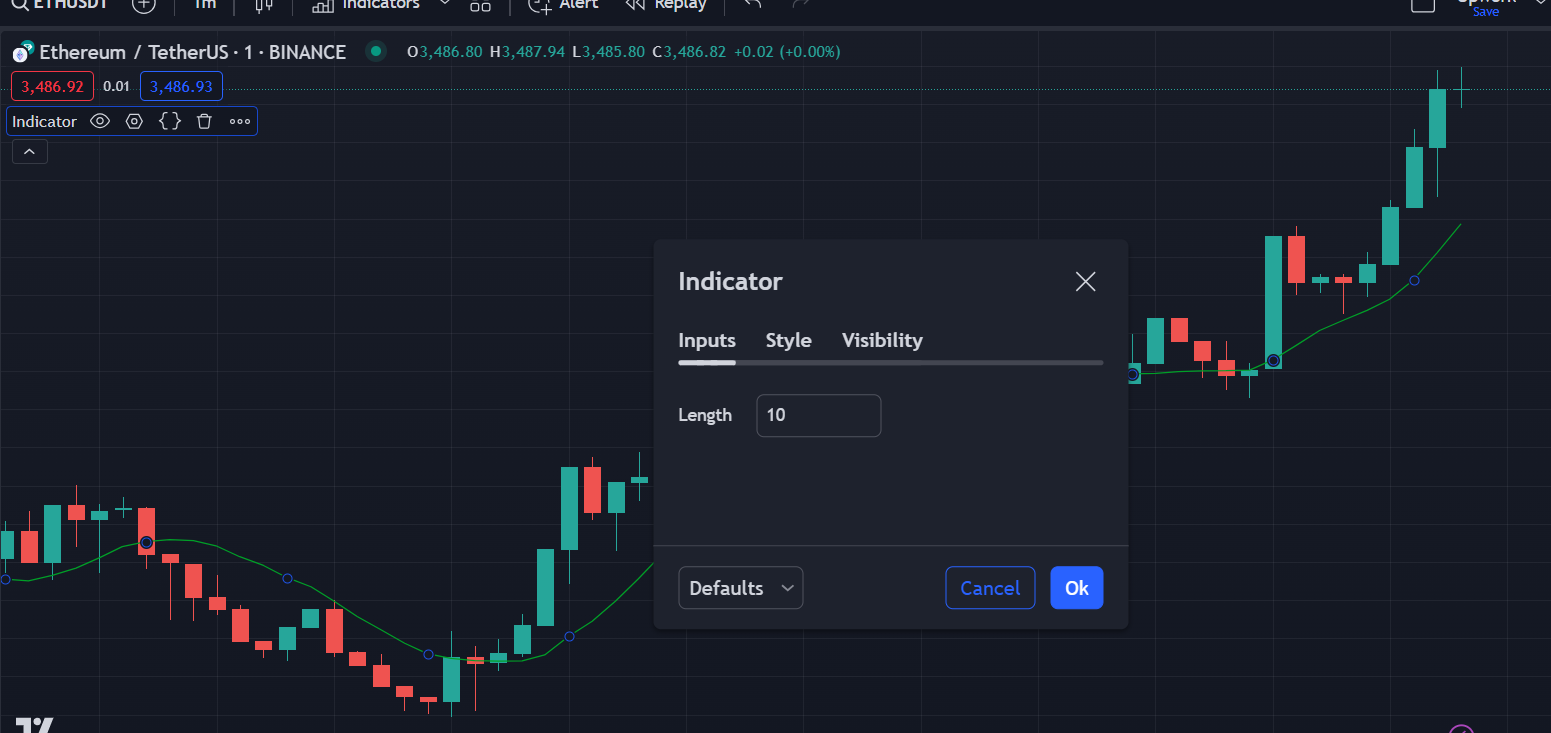
When you paste the generated script into TradingView, the script will include a Length setting with a default value of 10. This can be edited by the user, enabling you to adjust the length of the SMA indicator without regenerating new Pine Script code.
Indicator Nodes
Indicator nodes are blocks of code that convert into trading indicators. Examples include:
- EMA
- SMA
- MACD
Using these nodes will instantly generate a TradingView script for that indicator. This is especially useful for traders who often create strategies based on trading indicators developed by previous traders and mathematicians.
We are continuously updating this indicator library to provide you with the best and latest indicators in the trading world.
Util Nodes
Utility nodes solve common problems encountered while building trading scripts.
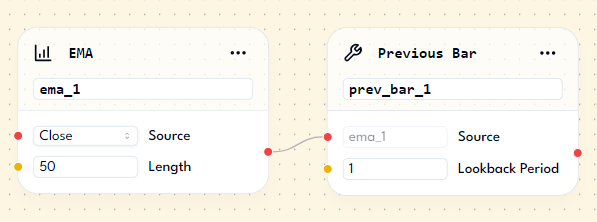
For example, to retrieve the previous value of the EMA, you can use the Previous Bar utility. It features two properties: Source and Lookback Period. By setting the EMA value as the source property of the Previous Bar node, the output will be the previous value of the EMA indicator, given that the lookback period is set to 1.
Condition Nodes
When you need to compare values of different indicators, you can use Condition Nodes. These nodes compare two values and return results based on the comparison. Some examples include:
- Greater than
- Less than
- And so on...
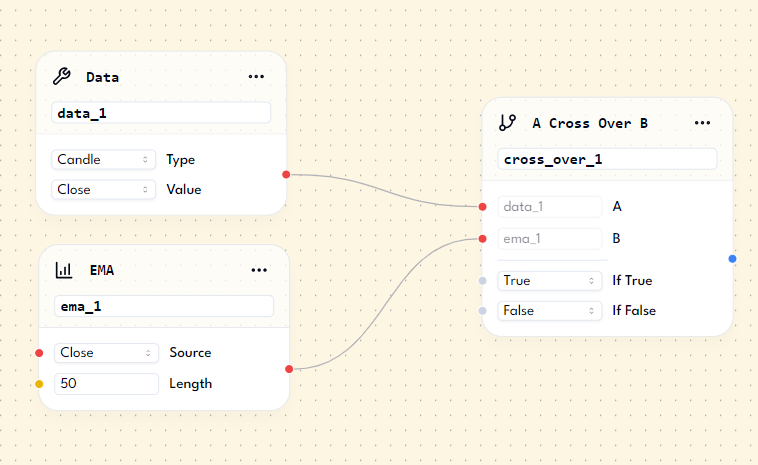
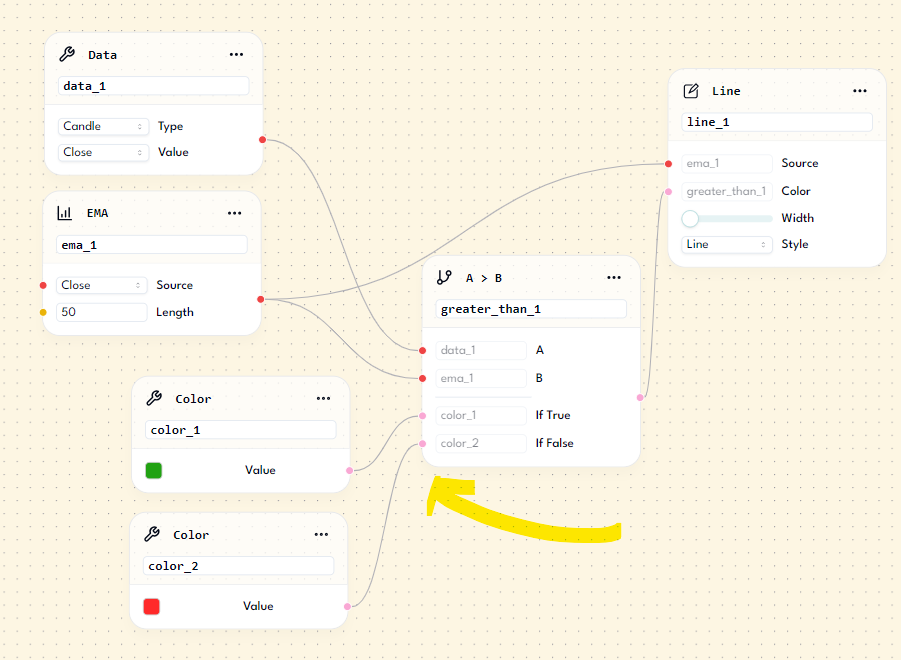
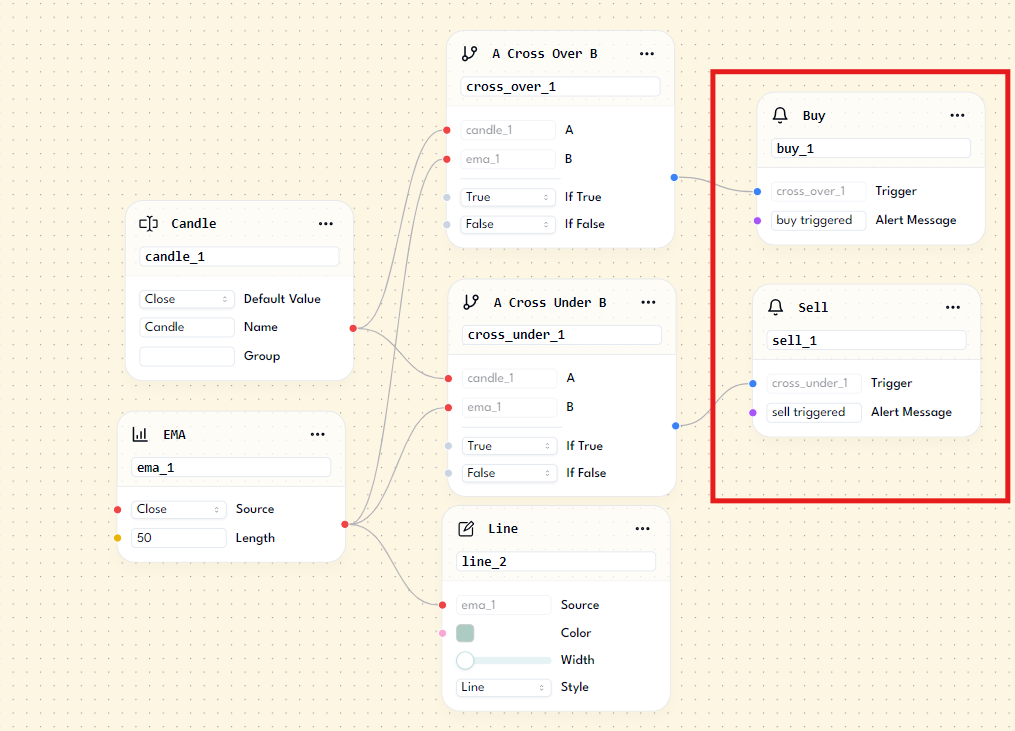
For instance, using the Cross Over Condition Node, you can determine if a candle crossed over the EMA 50. Connect the Candle value to the A target handle and the EMA value to the B handle. The node will return true if A crosses over B, and false otherwise.
Condition nodes can output various values beyond just true/false. You can also output custom values.
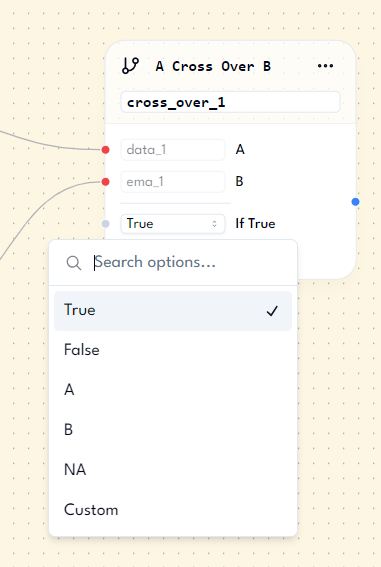
This is useful for customizing indicator colors. For example, you can use Green when the candle is above the EMA and Red otherwise.
Drawing Nodes
Drawing nodes are used to draw lines or labels on the chart, providing a visual representation of values and indicators. Commonly used nodes include Line and Label. When using these nodes, you need to pass a value to the Source property.
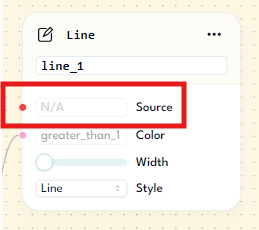
In the Line node, you need to pass a Decimal Number value (highlighted in red) to the target handle to draw a line on the chart.
Signal Nodes
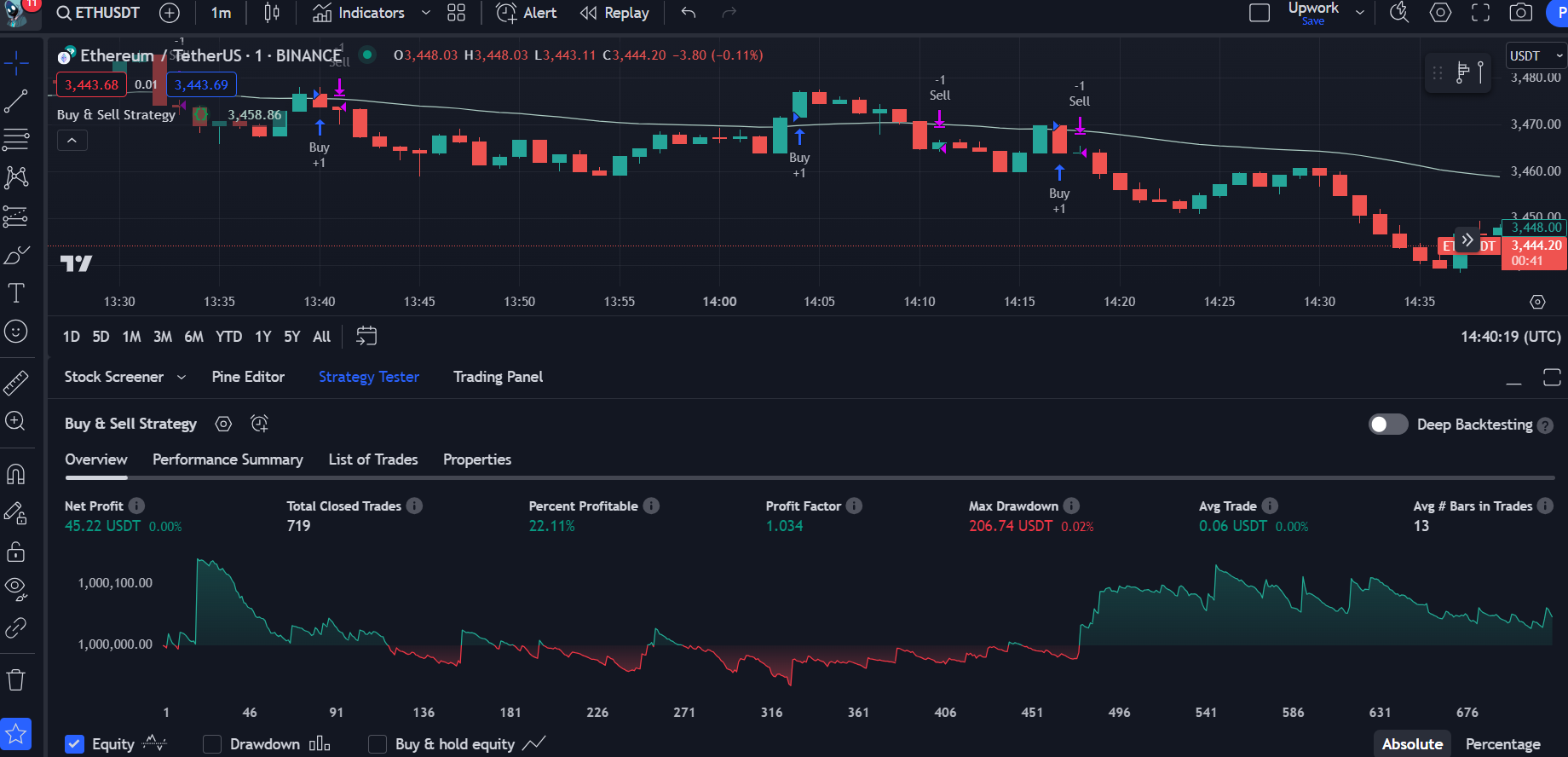
Signal nodes are primarily used for creating Trading Strategies. In your Script Properties, you can change the script type to Strategy.
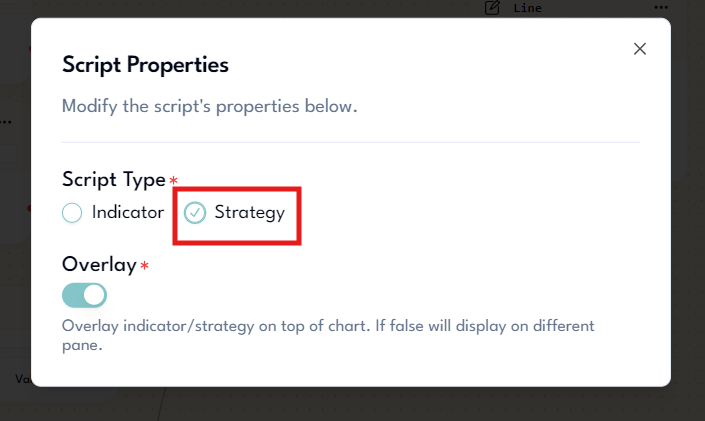
Then, you can use buy and sell nodes to backtest your trading strategy using TradingView's Strategy Tester.
Summary
In this lesson, you learned about the different categories of nodes and their functionalities. Understanding these categories will help you quickly find the appropriate nodes in our library when building your trading script.